
MICROSOFT WORD CV EDITING GUIDE
Your CV looked fine when you downloaded it. Then you replaced the example text, added another job and suddenly a heading moved, a second page appeared or the entire layout changed. This guide shows you how to edit a CV in Word — from replacing text and adding jobs to fixing moving headings, extra pages and photos — without rebuilding the document.
In This Guide
How to Edit a CV in Word: The Basics
Most layout problems start with how the first edits are made. Follow these steps when you open a new CV template, and you will avoid many of the issues covered later in this guide.
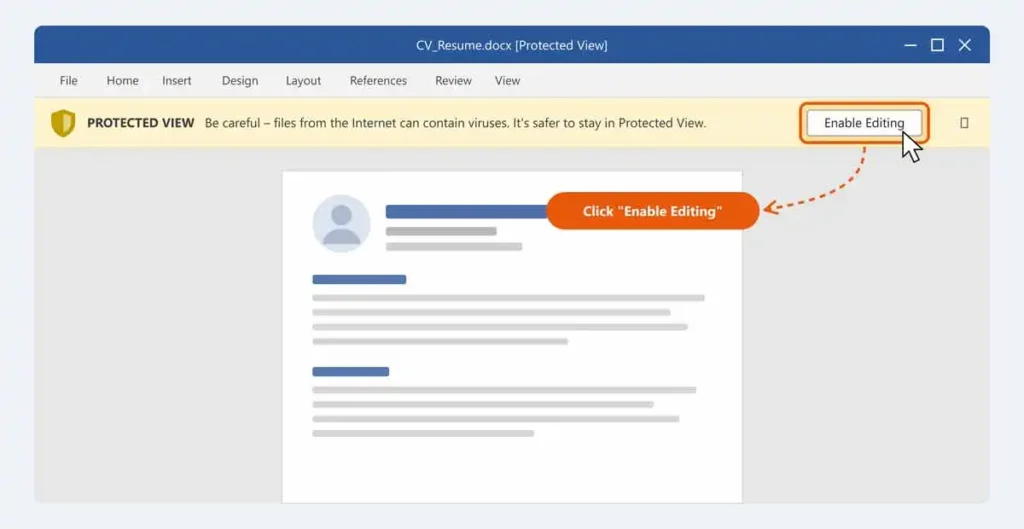
1. Open the File and Click “Enable Editing”
Word often opens downloaded documents in Protected View. If you cannot type in the CV, look for the yellow bar at the top of the window and select Enable Editing. Then save a working copy with your own file name before making changes.
2. Replace the Example Text — Do Not Delete and Retype Whole Sections
Select the example text (or a placeholder such as [Job Title]) and type over it. This keeps the existing font, size and spacing. Deleting an entire section and typing it again from scratch is one of the quickest ways to lose the template’s formatting.
3. Add Another Job by Copying an Existing Entry
To add a new position, select a complete existing job entry — from the job title to the last bullet point — copy it and paste it directly below. Then replace the copied details with your own. The new entry will use exactly the same formatting as the others.
If the entry sits inside a table, place the cursor in the row and use Table Layout → Insert Below instead, then copy the content into the new row.
4. Delete a Section Cleanly
Turn on Show/Hide ¶ first (see below), then select the section heading together with all of its content, including the final paragraph mark, and delete it. If the section is inside a table, delete the table rows (Table Layout → Delete → Delete Rows) rather than only the text, otherwise empty cells may leave a gap.
5. Change Fonts and Colours Through Styles or the Design Tab
If you want a different font or accent colour, change it once for the whole document rather than line by line. Use Design → Fonts / Colours where the template uses theme settings, or right-click a style in Home → Styles and choose Modify.
6. Save an Editable DOCX and a PDF
Keep the DOCX as your master copy for future applications and export a PDF only when the employer asks for one. See how to save your CV as PDF below.
Prefer to start without somebody else’s example career history? Our blank CV template for Word contains only headings and prompts, so there is less text to replace.
Why Does a CV Template Move When You Edit It?
A Word CV is not a picture. It is a document made from text, paragraphs, spacing rules and sometimes tables, columns, shapes, images or text boxes. When you replace the example content, Word recalculates how those elements fit on the page.
That means a small change can affect more than the sentence you edited.
- A longer job title may wrap onto a second line.
- A four-line profile may become six lines.
- An extra bullet may push the education section onto the next page.
- A photo may move because its position is connected to surrounding text.
- A heading may move with the paragraph below it.
- An invisible empty paragraph may create more space than expected.
- A manual page break may force content onto another page even when space appears to remain.
The first step is therefore not to start dragging sections around. Find out what actually caused the layout to change.
CV Moved in Word? Try These Fixes First
If the document was fine before you added your own information, work through these checks before changing the design.
- Undo the last change and confirm what caused the movement.
- Turn on Word’s formatting marks so you can see empty paragraphs and manual breaks.
- Check whether your replacement text is substantially longer than the original.
- Remove unnecessary blank paragraphs.
- Review paragraph spacing before reducing the font size.
- Check whether a heading is being kept with the paragraph below it.
- Shorten repeated or less relevant content if the CV has moved onto another page.
- Check the position and text wrapping of photos, shapes or text boxes.
- Keep formatting consistent instead of fixing individual lines one by one.
- Save a new copy before making major layout changes.
1. Turn On Formatting Marks Before You Fix Anything
One of the most useful Word tools for repairing a CV is also one of the easiest to overlook.
Go to:
Home → ¶ Show/Hide
Keyboard shortcut: Ctrl + Shift + 8 on Windows or Command + 8 on a Mac.
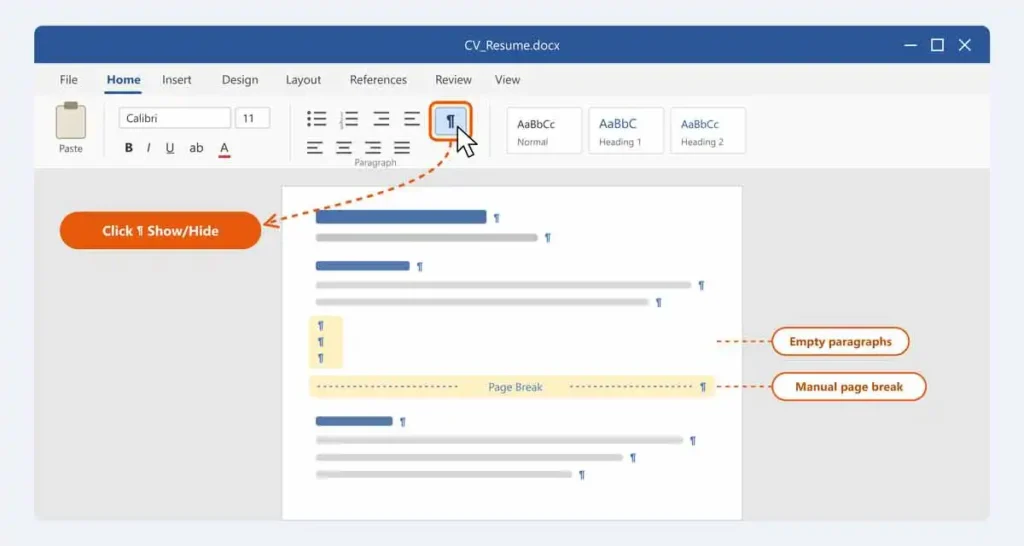
Once enabled, Word can show paragraph marks, spaces, tabs and breaks that normally remain hidden.
You may discover that the large gap above your education section is not part of the template at all. It may contain several empty paragraphs created while editing.
You might also find a manual page break that explains why content refuses to move back onto the previous page.
Do Not Delete Every Paragraph Mark
The paragraph mark represents the end of a paragraph and can contain formatting information. Use Show/Hide to diagnose the structure, not to remove every symbol you can see.
2. Your Text Is Longer Than the Example — That Is Usually the Real Problem
A template may contain a short example such as:
Project Coordinator
You replace it with:
Senior International Project Coordination and Operations Specialist
The second title may need another line. That additional line pushes everything below it down.
The same thing happens when a short profile becomes a large paragraph or three example bullets become seven.
This is normal Word behaviour. The template is adapting to the amount of content you entered.
Fix the Content Before the Font
Before reducing the font size, ask whether all of the added text is necessary.
- Are two bullets saying almost the same thing?
- Can an older job be shortened?
- Does the profile repeat the work experience?
- Are all listed skills relevant?
- Does a long sentence contain information the employer already understands?
3. Check Paragraph Spacing Before Shrinking the Text
A CV can gain a surprising amount of unwanted height from paragraph spacing.
Select the affected paragraph and open:
Home → Line and Paragraph Spacing → Line Spacing Options
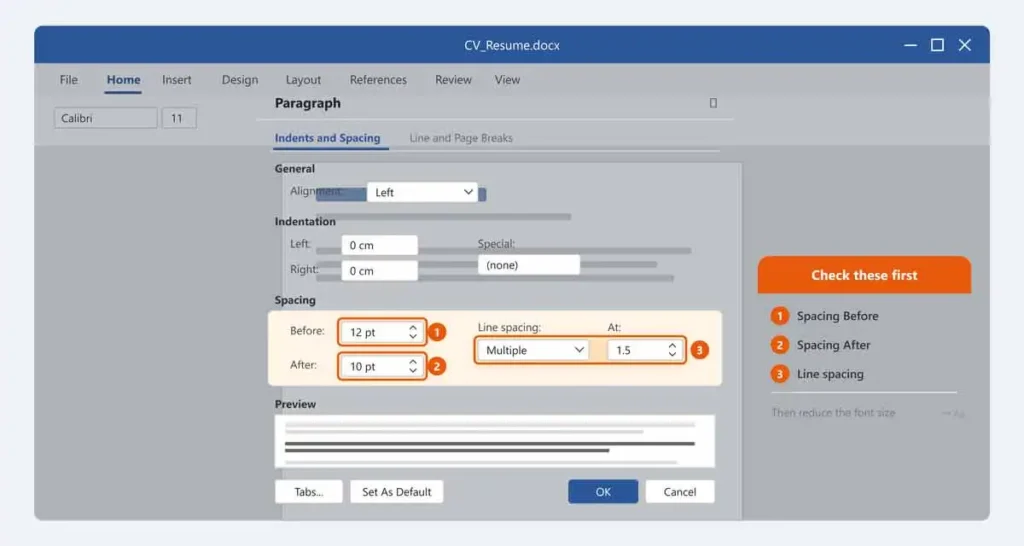
Look at the values for:
- Spacing Before;
- Spacing After;
- Line spacing.
If one job entry has 12 pt after every paragraph while the other entries use much less, the CV can develop inconsistent gaps.
Do not automatically set every value to zero. Some spacing is useful because it separates information and makes the page easier to read. The aim is consistency, not maximum compression.
4. Why Does a Heading Jump to the Next Page?
You may see enough room for a section heading at the bottom of the page, yet Word moves the heading to the next page.
This may be intentional.
Word includes a setting called Keep with next. It is often useful for headings because it prevents a heading from being stranded at the bottom of one page while its content starts on the next.
To inspect it:
- Select the heading.
- Open the Paragraph dialog box.
- Select Line and Page Breaks.
- Look for Keep with next.
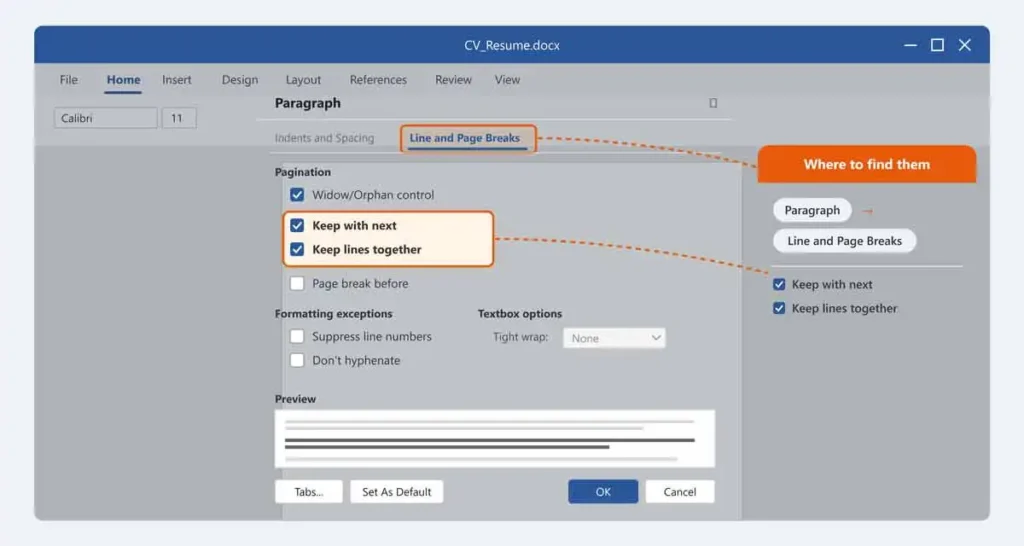
If the setting is active, Word may move the heading so it stays with the paragraph or job entry that follows it.
Do not disable it automatically. A heading attached to its content often looks better than a heading left alone at the bottom of the previous page.
5. Check “Keep Lines Together” When a Whole Paragraph Moves
Another Word setting can keep all lines of a paragraph on the same page.
If Keep lines together is active and there is not enough space for the complete paragraph, Word may move the entire paragraph to the following page.
This can be useful for short CV elements, but it may also explain why a block of text moves when there appears to be some space remaining.
Check the same Paragraph → Line and Page Breaks menu before changing margins or dragging other content around.
6. Check for a Manual Page Break
There are two different reasons Word can start a new page.
Automatic Page Break
Word creates this automatically when the current page runs out of room.
Manual Page Break
Someone deliberately inserted a page break into the document.
Turn on Show/Hide ¶. If you see a line labelled Page Break, it has been manually inserted.
If that break is no longer needed, select it and delete it.
Do not remove a manual break simply because it exists. Some two-page templates use one intentionally to control where the second page begins.
7. Why Does My CV Suddenly Become Two Pages?
If the template originally used one page and your edited version becomes two, the problem is not necessarily broken formatting.
Your information may simply require more space.
If Only One or Two Lines Move to Page Two
Look for:
- an unnecessarily long bullet;
- an empty paragraph;
- excessive paragraph spacing;
- a manual page break;
- a heading being kept with the next paragraph;
- a longer-than-expected job title;
- an optional section that adds little value.
If a Large Section Moves to Page Two
Do not fight the document indefinitely. You may simply have enough relevant content for a two-page CV.
Compare our one-page CV template and two-page CV template if you are unsure which structure suits your information. For a step-by-step diagnosis, see why your CV moves to a second page in Word.
8. Do Not Use the Spacebar to Align Dates
A common manual editing mistake is pressing the spacebar repeatedly until a date appears on the right side of the page.
It may look correct temporarily, but changing a job title, font or page width can move everything again because ordinary spaces are part of the text.
If the template already has a working alignment system, preserve it instead of rebuilding the line with spaces.
The same applies to repeatedly pressing Enter to push a section down the page. Paragraph spacing and proper page controls are more reliable than stacking empty paragraphs.
9. Use Styles Instead of Formatting Every Heading Separately
Imagine your CV has five section headings. You decide to change each one manually from 14 pt to 13 pt.
It works, but the document becomes harder to maintain because every heading is being treated separately.
Word styles allow the same formatting rules to be applied consistently to multiple paragraphs.
Depending on how the template was created, changing the underlying heading style can update every heading that uses it.
This is especially useful for:
- section headings;
- job titles;
- body text;
- dates;
- bullet lists.
Before manually reformatting the entire document, check whether the text already uses a Word style.
10. Be Careful When Copying Text From Another CV
Copying a paragraph from another Word document can bring formatting with it.
After pasting, one paragraph may suddenly use a different:
- font;
- font size;
- line spacing;
- paragraph spacing;
- indentation;
- bullet style;
- text colour.
If pasted text looks different, use Word’s paste options to match the destination formatting, or paste the text without its original formatting and then apply the template’s existing style. The quickest option is Paste → Keep Text Only, or right-click and choose the paste icon marked with an “A”.
Do not copy an entire old CV into a new template in one operation unless you are prepared to clean the imported formatting afterwards.
11. Why Does the Photo Move?
Images in Word can behave differently depending on their text-wrapping and positioning settings.
A photo may be:
- treated like a character within the text;
- wrapped by surrounding text;
- set to move when nearby text moves;
- fixed in a position on the page.
If a CV photo jumps after you add text, select the image and inspect Layout Options or Wrap Text before dragging it manually.
If the template uses a carefully positioned image, repeatedly dragging it can make alignment less consistent.
If you do not want a photograph at all, remove the image and then check whether the surrounding text or sidebar needs to be repositioned.
12. Text Boxes Can Move Differently From Normal Text
Some designed CV templates use text boxes or shapes to position information independently from the main document text.
This can create a polished layout, but it also means the element may have its own position and wrapping behaviour.
If a text box has moved:
- Select the border of the text box rather than the text inside it.
- Check its position relative to the page and surrounding text.
- Check the text-wrapping setting.
- Make sure you have not accidentally dragged the object while editing its text.
- Undo the movement if the original position was correct.
Do not start moving every other section to compensate for one displaced object. Fix the object that caused the problem first.
13. What If the CV Uses a Table?
Tables are sometimes used behind the scenes to keep dates, headings or columns aligned. You may not immediately realise that part of the CV is inside a table because its borders can be hidden.
If the cursor behaves unexpectedly or text seems confined to a particular width, click inside the area and check whether Word displays the Table Layout or Table Design tabs. To see hidden table borders, select the table and choose Table Layout → View Gridlines.
If it is a table, avoid inserting random spaces or dragging text outside the structure. Replace the existing content while preserving the cell layout unless you intentionally want to redesign that part of the document.
For applications where document parsing is particularly important, a simpler one-column structure may be preferable. See our ATS-friendly CV template for Word.
14. Do Not Fix a Long CV by Making Everything Tiny
This is one of the easiest ways to make a CV technically fit while making it worse to use.
If the document is too long, work in this order:
- Remove repeated information.
- Shorten older or less relevant roles.
- Reduce unnecessarily long sentences.
- Remove optional information that does not support the target role.
- Check paragraph spacing.
- Check for accidental blank paragraphs or page breaks.
- Only then consider small formatting adjustments.
If substantial relevant information still does not fit, changing from a one-page CV to a two-page CV is often more sensible than forcing the text into an uncomfortable layout.
15. Edit the Content Before You Redesign the Template
Changing a CV template’s colours or fonts is relatively simple. Changing its underlying structure can have consequences throughout the document.
Before redesigning the template, complete the important content first:
- contact details;
- professional profile if you are using one;
- employment history;
- achievements;
- education;
- relevant skills;
- certifications or additional sections you genuinely need.
Once the real content is present, you can see whether the design actually needs changing.
A Safer Way to Edit Any Word CV Template
- Save the original file. Keep an untouched copy before editing.
- Save a working copy. Use this for your own information.
- Replace text section by section. Do not paste your entire old CV at once.
- Check the page after each major section. You will know which change caused a problem.
- Preserve existing formatting first. Replace the text before changing fonts, colours or positions.
- Turn on formatting marks when something looks wrong.
- Review paragraph and page-break settings before dragging elements.
- Remove irrelevant example sections. Do not leave empty placeholders.
- Use consistent formatting. Avoid individual one-off fixes when the same type of content appears elsewhere.
- Save another version before major design changes.
Before and After: Fixing a CV That Has Moved to Page Two
Imagine the final education heading and two lines of text have moved onto a second page.
Bad Fix
- reduce every paragraph to a much smaller font;
- remove almost all spacing;
- make the margins extremely narrow;
- drag the education section upwards.
Better Diagnostic Process
- Turn on Show/Hide.
- Check for an empty paragraph before Education.
- Check whether a manual page break exists.
- Review the paragraph spacing above the heading.
- Check whether one previous bullet can be written more concisely.
- Remove an irrelevant optional line if appropriate.
- Leave the document at two pages if the information genuinely needs the space.
The goal is to solve the cause rather than hide the symptom.
When Should You Stop Fixing and Choose Another Template?
Sometimes the template is not broken. It simply does not suit the amount or type of information you need to present.
Consider another format when:
- your experience continually overflows the available space;
- you need to remove important evidence to preserve the design;
- the sidebar is too narrow for your information;
- your job titles regularly wrap awkwardly;
- you need a much simpler structure for online applications;
- you spend more time repairing the layout than improving the content.
You can compare simple, professional, modern, one-page and two-page Word CV formats before deciding which structure is easiest to maintain.
Editing a CV on a Mac, in Word for the Web or in Google Docs
Most of the advice in this guide applies wherever you open the DOCX file, but the menus and the amount of layout control differ.
Word for Mac
Word for Mac supports the same CV templates and formatting features. The ¶ Show/Hide button is on the Home tab (shortcut Command + 8), and paragraph settings such as spacing, Keep with next and Keep lines together are available through Format → Paragraph.
Word for the Web
Word for the web is fine for replacing text, but it offers fewer advanced layout and style controls than the desktop application. If you cannot find a setting mentioned in this guide, open the file in the desktop version of Word to make the change.
Google Docs
You can open a Word CV in Google Docs, but designed templates may not convert perfectly. Fonts can be substituted, and text boxes, shapes or columns can shift. Simpler one-column layouts usually convert best. If you edit in Google Docs, use View → Show non-printing characters to see paragraph marks and page breaks, and check the layout carefully before downloading the finished file.
How to Save Your Word CV as PDF
Once your CV is finished, keep the DOCX as your editable master copy and create a separate PDF when an employer asks for one.
- Windows: go to File → Save As (or Save a Copy), choose a location and select PDF as the file type.
- Mac: go to File → Save As and choose PDF from the File Format menu.
- Give the file a clear name, such as James-Carter-CV.pdf.
- Open the PDF and check every page: page breaks, fonts, photo position and any links.
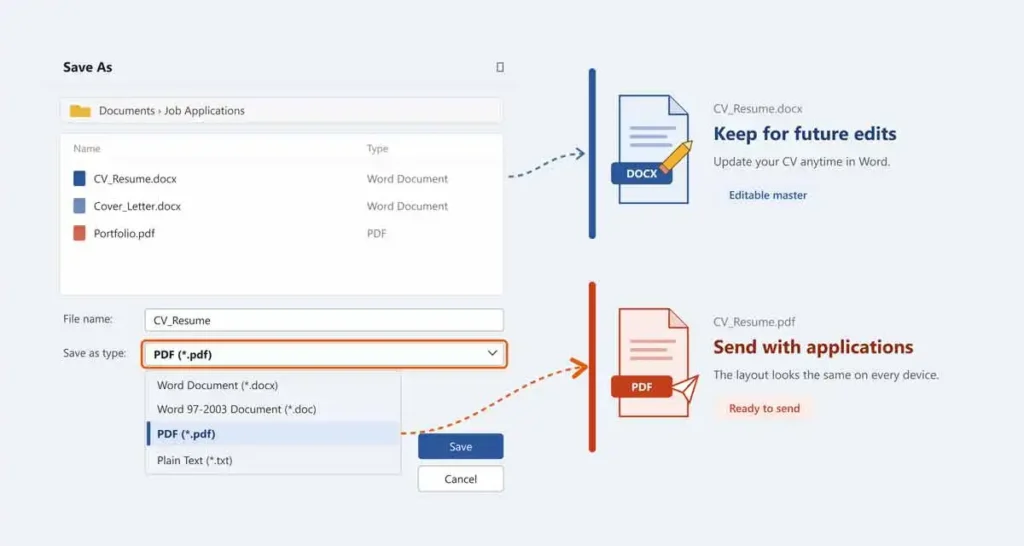
If something looks wrong in the PDF, fix it in the Word file and export again rather than editing the PDF.
Final Check Before You Send the CV
- Confirm that no example name or employer remains.
- Search for square brackets such as [Job Title] to catch leftover placeholders.
- Check your email address and telephone number.
- Make sure dates use a consistent format.
- Look for headings stranded at the bottom of pages.
- Check that no bullet has moved away from its job entry.
- Make sure text has not disappeared behind a shape or image.
- Review both pages at normal zoom.
- Use Word’s spelling and grammar tools, but review the text yourself as well.
- Keep the editable DOCX master copy.
- Follow the employer’s instructions for the file format you submit.
Need a Cleaner Word CV Template?
Browse our editable Microsoft Word CV templates and choose a layout that suits the amount of experience and information you need to present — or start from a blank template with prompts instead of example text.
How to Edit a CV in Word: FAQs
Why can’t I edit my CV template in Word?
Downloaded files often open in Protected View. Select Enable Editing in the yellow bar at the top of the window. If the file is marked as read-only, save a copy under a new name and edit that copy.
How do I add another job to a CV template in Word?
Copy a complete existing job entry, paste it directly below and replace the details. If the entry is inside a table, insert a new row first. This keeps the new job consistent with the rest of the CV.
How do I delete a section without breaking the layout?
Turn on Show/Hide ¶, select the heading and all of its content including the last paragraph mark, then delete it. If the section is inside a table, delete the table rows rather than only the text.
Why does my CV move when I type in Word?
Word automatically recalculates the position of content as text becomes longer or shorter. Paragraph settings, page breaks, images, text boxes and other layout elements can also affect where information appears.
Why did one extra line create a second page?
The additional line may have pushed the document beyond the available page space. A heading or paragraph may also be configured to stay with the content that follows it, causing a larger block to move together.
How do I see hidden formatting in Word?
Open the Home tab and select the ¶ Show/Hide button, or press Ctrl + Shift + 8 (Command + 8 on a Mac). This can reveal paragraph marks, spaces, tabs and document breaks that are normally hidden.
How do I remove an unwanted page break?
Turn on Show/Hide, locate the manual Page Break, select it and delete it. Automatic page breaks cannot simply be deleted because Word creates them according to the amount of content on the page.
Why does my CV photo keep moving?
The image may be configured to move with surrounding text or use a particular wrapping option. Select the image and inspect Layout Options or Wrap Text before repositioning it manually.
Should I reduce the font size if my CV becomes too long?
Review the content and spacing first. Remove repetition and reduce less relevant detail before making the whole document smaller. If important information still needs more space, a longer CV format may be more appropriate.
Can I edit a Word CV template on a Mac?
Yes. Word for Mac opens and edits DOCX CV templates with the same formatting features. Paragraph and page-break settings are under Format → Paragraph.
Should I edit my CV in Word or Word for the web?
Basic text changes can be made in either, but some advanced formatting and style controls differ between the desktop and web versions of Word. A complex template may therefore be easier to maintain in the desktop application.
Related Word CV Guides
CV Moves to a Second Page
Learn what causes an extra page in Microsoft Word and how to decide whether to shorten the content or keep the second page.
Blank CV Template for Word
Start from a Word layout with headings and prompts instead of somebody else’s example career history.
ATS-Friendly CV Template
A simple one-column Word layout that is easier to edit and suits online application systems.