

MICROSOFT WORD CV FORMATTING GUIDE
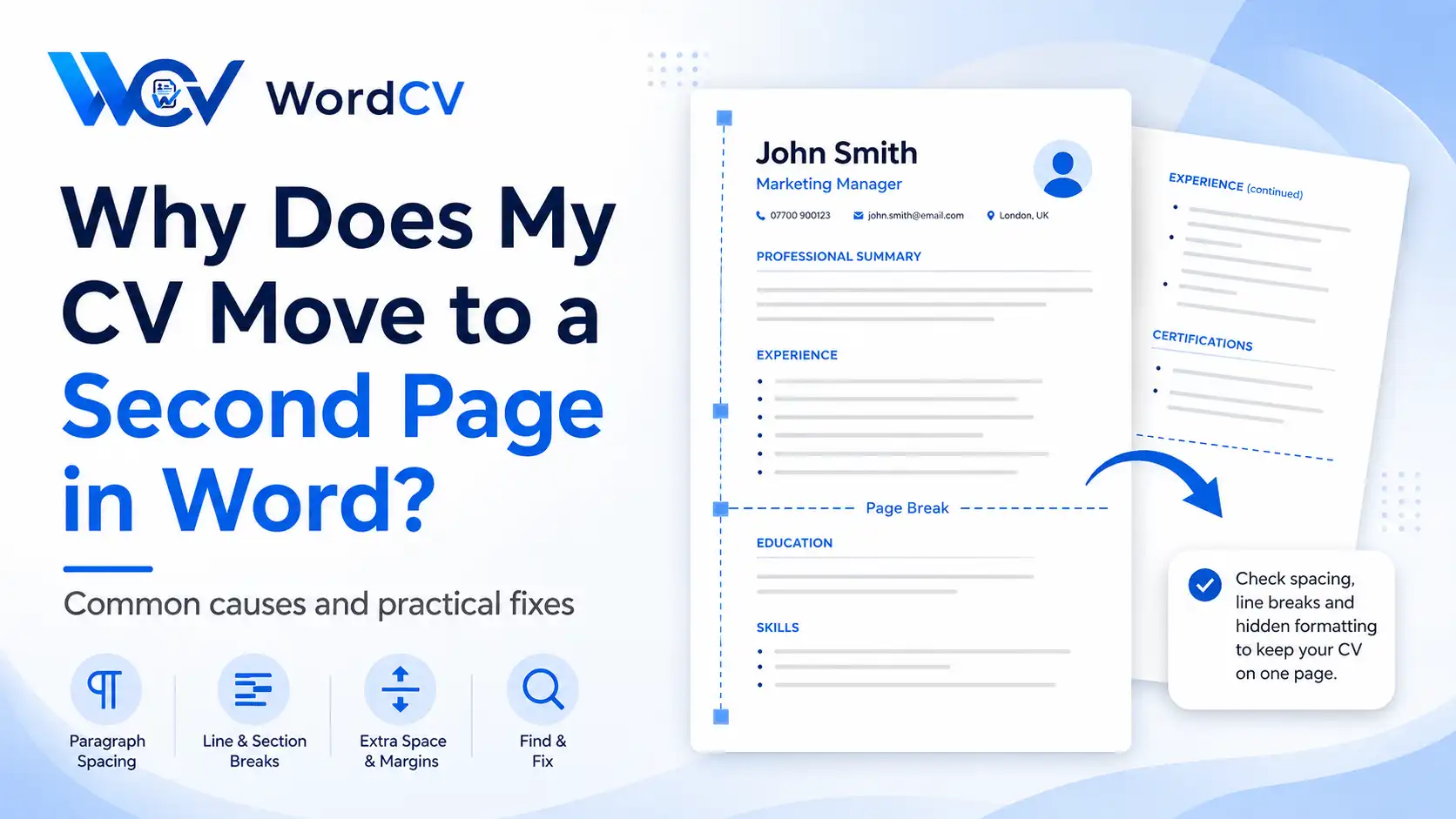
Your CV fitted perfectly on one page until you changed a job title, added a bullet or replaced the example text. Now one heading, one line or an entire section has moved onto page two. This guide explains the most common reasons and shows what to check before shrinking the entire document.
Why Can One Small Change Create a Second Page?
Word continuously recalculates how much space your content needs. A single additional line can therefore affect everything that follows it.
For example, changing:
Project Coordinator
to:
Senior International Project Coordination Specialist
may cause the title to wrap onto another line. That one new line pushes the next paragraph down, which may push the education heading down, which may finally move the last section onto page two.
So the content that appears on page two is not always the content that caused the problem.
CV Suddenly Has a Second Page? Check These First
- Turn on Word’s formatting marks.
- Check whether a manual page break has been inserted.
- Look for empty paragraphs near the bottom of page one.
- Check whether your new text is longer than the original example.
- Review paragraph spacing before and after headings and bullets.
- Check Keep with next and Keep lines together.
- Check whether Page break before is enabled.
- Look for a section break.
- If the CV contains a table, check the row settings.
- Check whether a photo or other object is pushing text down.
- Check whether Word is displaying the document with a replacement font.
- If substantial relevant content remains, consider whether two pages are actually more appropriate.
1. Turn On Show/Hide Before Changing the Layout
Many Word formatting problems are caused by things you cannot normally see.
Open:
Home → ¶ Show/Hide
This can reveal paragraph marks, tabs and document breaks.
If the second page appeared after editing, look closely at the bottom of page one and the beginning of page two.
- Are there several empty paragraph marks?
- Is there a manual Page Break?
- Is there a Section Break?
- Is an apparently empty line actually a formatted paragraph?
Finding the cause before changing font sizes can save a great deal of unnecessary reformatting.
2. Check for a Manual Page Break
Word uses both automatic and manual page breaks.
Automatic Page Break
Word creates this automatically when the current page has no more room.
Manual Page Break
A manual break has been deliberately inserted into the document and forces the following content onto a new page.
With Show/Hide turned on, a manual break appears as a labelled Page Break. If it is no longer needed, select it and delete it.
Do not delete every manual break automatically. A deliberately designed two-page CV may use one to control where page two begins.
3. Look for Empty Paragraphs at the End of the Page
Pressing Enter several times to create visual space adds real paragraphs to the document.
Those empty paragraphs still take up vertical space.
With formatting marks visible, you may find several ¶ symbols between two CV sections.
If they were added accidentally, remove them and use proper paragraph spacing instead.
A CV should not depend on repeated Enter presses to control where sections appear.
4. Your Own Text Is Longer Than the Template Text
This is one of the most common reasons a one-page template becomes two pages.
The example CV may contain:
- a three-line profile;
- three bullets per job;
- short job titles;
- short employer names;
- a compact skills section.
Your real CV might contain:
- a six-line profile;
- six bullets per job;
- longer job titles;
- long organisation names;
- extra certifications and software.
Word is not malfunctioning. Your content simply needs more space than the example.
5. Shorten the Right Content, Not Everything
If only a few lines have moved onto page two, do not immediately shrink the whole CV.
Look first for information that can be shortened without weakening the application.
Long Version
Responsible for responding to customer enquiries by telephone and email and making sure customers received accurate information about their accounts and services.
More Compact Version
Handled telephone and email enquiries and provided accurate account and service information.
The shorter version preserves the useful evidence while using less space.
6. Check Paragraph Spacing
Word can add space before and after paragraphs independently from line spacing.
Select the affected paragraphs and inspect:
Home → Line and Paragraph Spacing → Line Spacing Options
Review:
- Spacing Before;
- Spacing After;
- Line spacing.
A few points of extra spacing repeated across several job entries can add enough height to push the final section onto another page.
Keep useful white space. The aim is to remove accidental inconsistency, not to make the CV as compressed as possible.
7. “Keep with Next” Can Move More Than You Expect
Word can keep one paragraph attached to the paragraph that follows it.
This setting is called Keep with next.
It is commonly useful for CV headings because it prevents a heading from being left alone at the bottom of a page.
However, it also means that Word may move both the heading and the next paragraph onto page two even when there appears to be room for the heading itself.
To check it:
- Select the heading or paragraph.
- Open the Paragraph dialog box.
- Open Line and Page Breaks.
- Check Keep with next.
Do not automatically turn it off. Keeping a heading together with its content often produces a cleaner CV.
8. “Keep Lines Together” Can Move an Entire Paragraph
If Keep lines together is enabled, Word tries to keep all lines of that paragraph on the same page.
If only part of the paragraph fits at the bottom of page one, Word may move the entire paragraph to page two.
This can make it look as though Word has wasted available space.
Check the setting in:
Paragraph → Line and Page Breaks
9. Check “Page Break Before”
A paragraph can also be configured to always begin on a new page.
This option is called Page break before.
If it has been applied accidentally to an education heading or other CV section, Word will move that section to the next page even if there appears to be plenty of space above it.
Open the Paragraph dialog box, select Line and Page Breaks and check whether the option is enabled.
10. Widow and Orphan Control Can Affect Page Flow
Word includes a pagination setting designed to avoid leaving a single line of a paragraph by itself at the top or bottom of a page.
This is useful for readability, but it can also influence exactly where Word creates an automatic page break.
If you are trying to understand why one extra line has moved, check the paragraph’s pagination settings before assuming the document is broken.
11. A Section Break Can Create Unexpected Page Behaviour
A CV template may contain section breaks for columns, headers or other layout changes.
Turn on Show/Hide to make section breaks visible.
Be careful before deleting one. Removing a section break can change the formatting of the sections around it.
If the break was deliberately used to create part of the CV layout, deleting it may solve the extra page but create several new formatting problems.
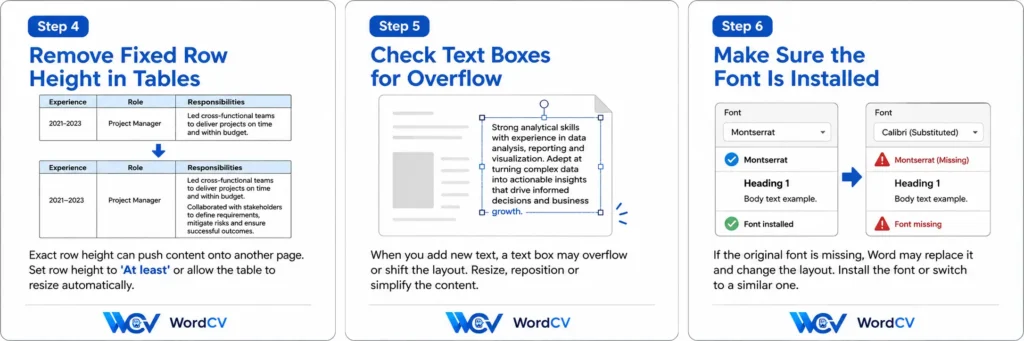
12. Check Hidden Tables and Row Settings
Some Word CV templates use tables to keep dates, headings or columns aligned. The table borders may be hidden, so you may not realise the content is inside a table.
If a complete block unexpectedly moves to page two, click inside the area and check whether Word displays the Table Design or Table Layout tabs.
In Table Properties, row settings can affect whether rows are allowed to break across pages and whether a fixed row height is being used.
A fixed height can become a problem when your replacement text needs more vertical space than the original content.
13. A Photo Can Push Text Down
Pictures in Word can interact with surrounding text in different ways.
If the picture is set to move with text or uses text wrapping, changing nearby paragraphs may affect where the picture sits and how much room the text has.
Select the image and inspect:
Layout Options → Wrap Text / Position
Do this before repeatedly dragging the image around the page.
14. The Font Can Change the Number of Pages
Different fonts do not occupy exactly the same amount of space.
If a CV was created using a font that is not available on your computer, Word may display the document using a replacement font.
The replacement may be slightly wider or taller, causing lines to wrap differently and sections to move down the page.
If the template suddenly looks different on another computer, check whether the original font is available before manually rebuilding the layout.
15. Why Does Only One Line Appear on Page Two?
This is usually the easiest type of overflow to investigate because the CV is very close to fitting on one page.
Work through these in order:
- Turn on Show/Hide.
- Remove any accidental empty paragraph.
- Check for a manual page break.
- Check paragraph spacing.
- Check Keep with next and Keep lines together.
- Shorten one unnecessarily long bullet.
- Check whether a job title has wrapped onto another line.
- Remove an optional detail that adds little value.
Only after these checks should you consider minor layout adjustments.
16. Do Not Make the Font Tiny Just to Stay on One Page
A one-page CV is not automatically better than a readable two-page CV.
If keeping one page requires:
- very small body text;
- extremely narrow margins;
- almost no white space;
- removing important achievements;
- cutting highly relevant experience;
- compressing every section;
the problem may no longer be Word formatting. The content may genuinely need another page.
When Should You Keep the Second Page?
Keep two pages when page two contains information that materially strengthens the application.
- several relevant positions;
- important achievements;
- leadership experience;
- technical projects;
- professional qualifications;
- relevant certifications;
- specialist experience that needs explanation.
Do not cut strong recent evidence simply because someone told you every CV must be one page.
See our two-page CV template for Word if your content naturally needs more room.
Formatting is only one part of a strong application. If you are also reviewing the content itself, our complete CV writing guide explains what to include, how to organise each section and how to tailor the document to the role.
When Should You Bring It Back to One Page?
A second page may not be necessary when it contains only:
- one or two stray lines;
- references that were not requested;
- a long hobbies section;
- old or irrelevant certifications;
- repeated responsibilities;
- generic skills already demonstrated elsewhere.
In that situation, editing the content is usually better than reducing the entire document.
If your strongest information comfortably fits on one page, see our one-page CV template for Word.
A Better Order for Fixing a CV That Has Become Two Pages
- Save a backup copy.
- Turn on formatting marks.
- Look for manual breaks and empty paragraphs.
- Check paragraph pagination settings.
- Check tables, images and objects.
- Check whether your font has changed.
- Remove repeated or weak content.
- Shorten older and less relevant information.
- Make only small spacing adjustments if still required.
- Keep page two if the remaining content genuinely deserves the space.
Still Fighting the Word Layout?
If the template needs constant repairs to fit your information, the better solution may be choosing a CV layout designed for the amount of experience you actually have.
CV Moving to a Second Page: FAQs
Why did my CV suddenly become two pages?
The most common reason is that your edited content needs more space than the original template content. Paragraph spacing, pagination settings, manual breaks, tables, images and fonts can also affect page length.
Why is there empty space at the bottom of page one?
Word may be keeping a heading with the following paragraph, keeping all lines of a paragraph together or applying another pagination setting. A manual or section break can also be responsible.
Why does my heading move to page two?
The heading may use Keep with next, which tells Word to keep it on the same page as the paragraph that follows. This is often intentional to avoid leaving the heading alone at the bottom of a page.
Can I delete an automatic page break?
No. Word automatically creates page breaks when the page is full. You can remove a manual page break, but automatic breaks must be influenced by changing the content or pagination settings.
Can a missing font make my CV two pages?
Yes. A replacement font may use different character widths or line spacing, which can change line wrapping and therefore the page layout.
Should I reduce the margins?
Small adjustments may sometimes help, but margins should not be the first fix. Check accidental spacing, page-break settings and unnecessary content first.
Is a two-page CV bad?
No. A focused two-page CV can be appropriate when you have enough relevant experience and evidence to justify the extra space. Page count should follow the useful content rather than an arbitrary rule.
Related Word CV Guides
Edit a CV Template in Word
Fix spacing, headings, images, text boxes and other Word formatting problems.
One-Page CV Template
Learn how to decide what should stay, what should be shortened and when one page is enough.
Two-Page CV Template
Use a two-page layout when relevant experience and achievements genuinely need more room.